re:cam · iPhone
Give an existing iPhone photo a vintage digital camera look
Maybe you already got the shot: a street at dusk, a bright shop sign and a wall slipping into shadow. Try that same photo through two old compact camera looks in re:cam. You can keep the original and save just the version you like.
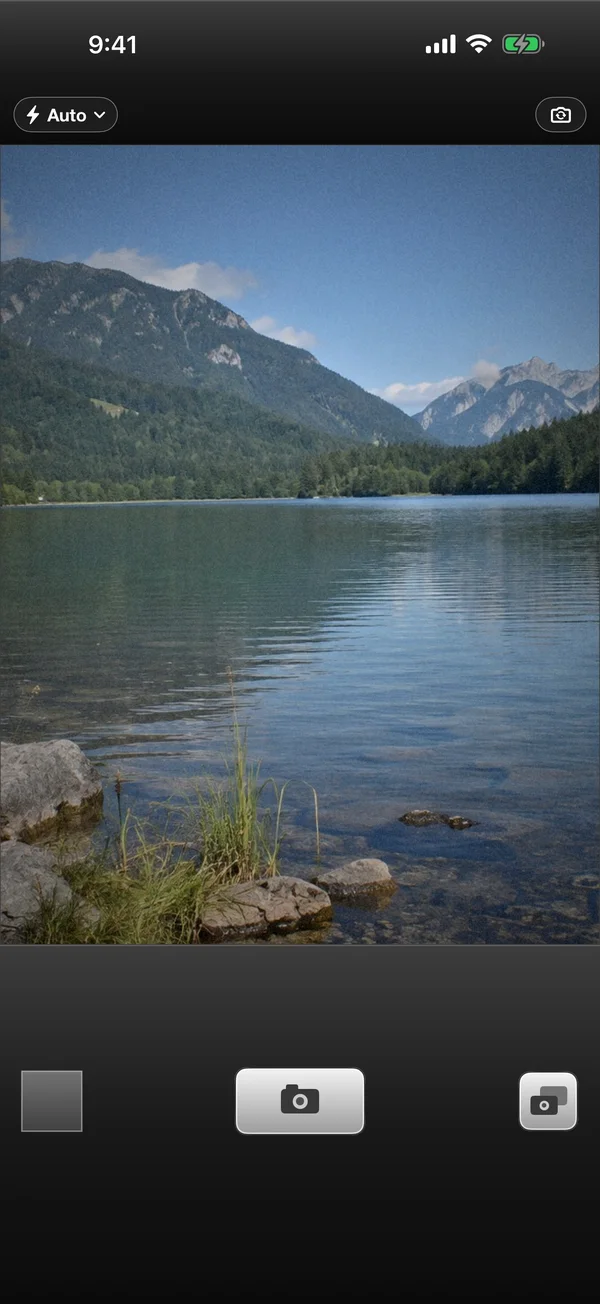
Start from the thumbnail
Tap the photo thumbnail on re:cam’s shooting screen to open “Camera Roll”. Tap + at the top left and pick a photo from your iPhone library. A shot taken with Apple’s Camera app works here too.
Compare two cameras on the same frame
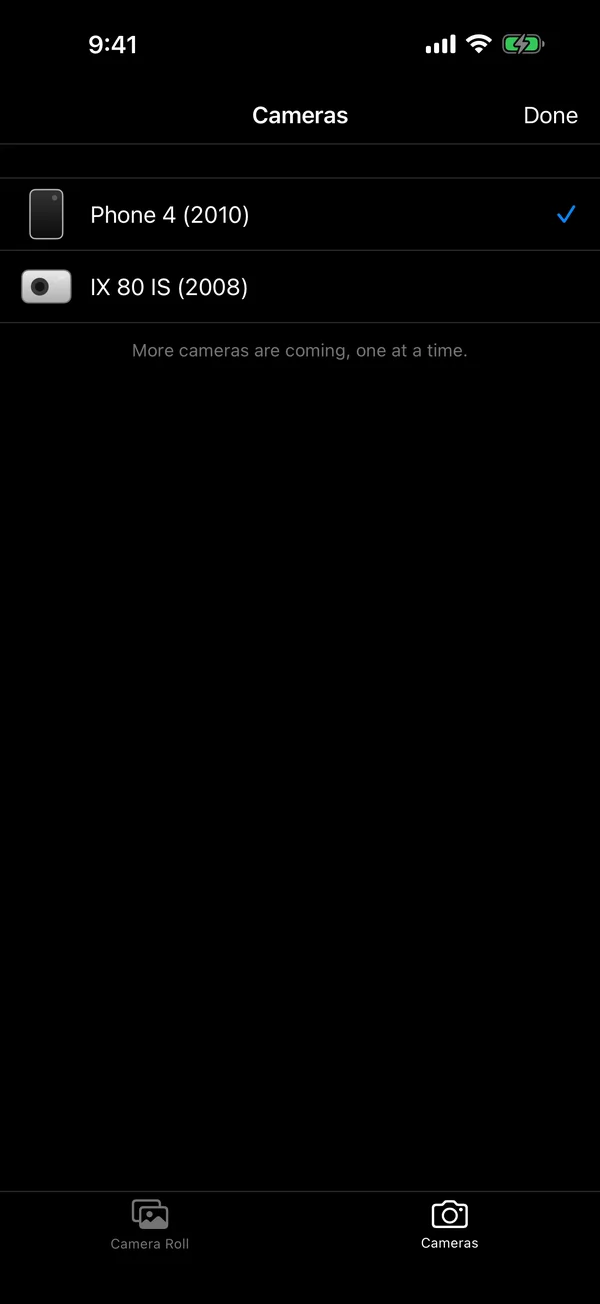
Tap the camera name below the preview and choose W35 (2007). Switch to IX 80 IS (2008) without leaving the photo. Look at the lettering in the bright sign, then at the grain in the dark wall. Switch back to W35 if you prefer the first version.
Keep the edit alongside the original
Tap “Save” at the top right. You’ll find the new photo in the re:cam album in Photos, with the original still in your library. If you were only trying out the looks, tap “Cancel” to leave without saving a copy.