Photoff · iPhone
How to tidy your iPhone photos, starting with old screenshots
Look for a favorite photo and you’ll probably pass a few things you saved just to get through the day: a coupon, a ticket, directions to a café. Those are an easy place to start.
Find the screenshots you only needed once
In Photoff, open “Library” and choose “Screenshots” to see your screen captures together. An expired offer is an easier call than a family portrait. Leave the portraits for another day.
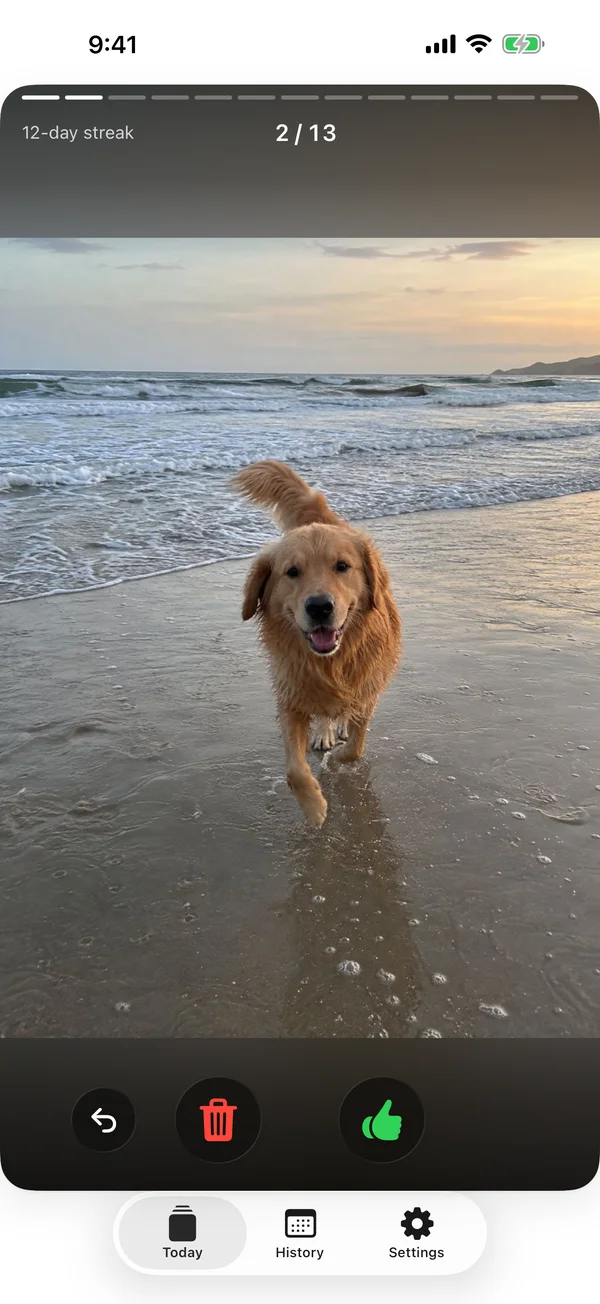
Swipe right for a keeper
Swipe left on the coupon you’ve already used. Swipe right on the ticket you still need this weekend. If you send the ticket the wrong way, undo the last swipe to bring it back.
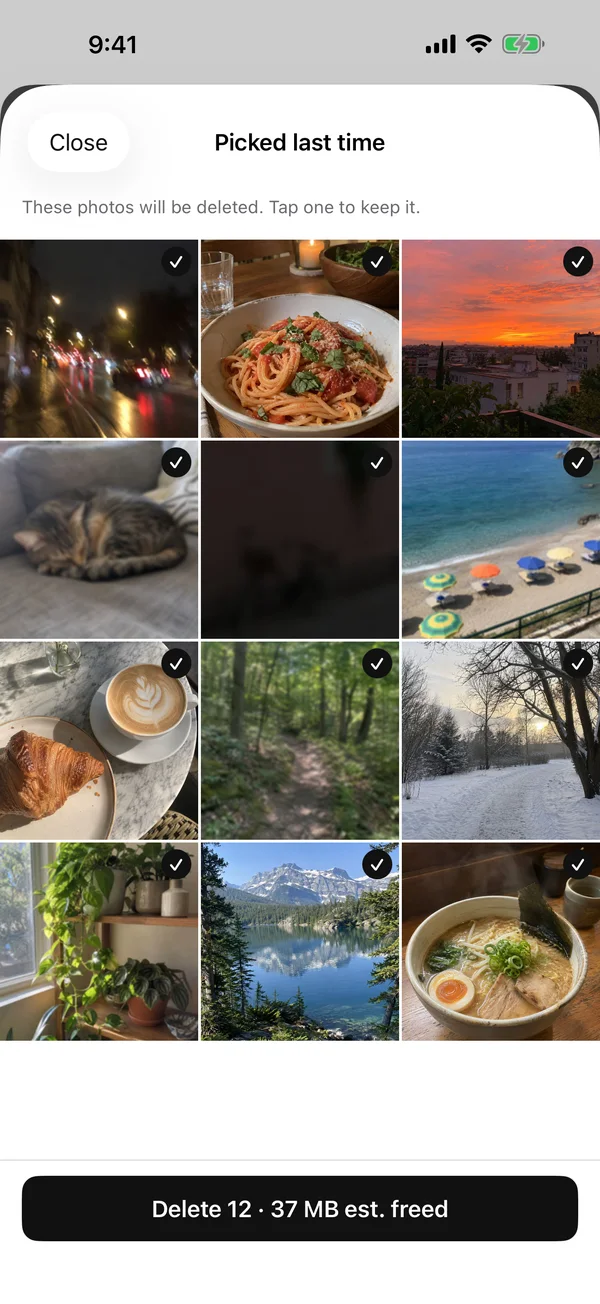
Check before deleting
When a round ends with photos marked for deletion, iOS asks you to confirm. If you’re unsure, cancel and revisit the pending photos later. With iCloud Photos, deleting a photo also removes it from your other devices using the same library.